---
title: "Glacier2 Integration with IceGrid"
url: https://docs.zeroc.com/ice/3.8/services/icegrid/glacier2-integration-with-icegrid
docs_index: https://docs.zeroc.com/llms.txt
---
> For an index of every page, see [llms.txt](https://docs.zeroc.com/llms.txt).
# Glacier2 Integration with IceGrid
This section provides information on integrating a [Glacier2 router](https://docs.zeroc.com/ice/3.8/services/glacier2.md) into your IceGrid environment.
## Configuration Changes for Using Glacier2 with IceGrid
A typical IceGrid client must be configured with a [locator proxy](https://docs.zeroc.com/ice/3.8/services/icegrid/getting-started-with-icegrid.md), but the configuration requirements change when the client accesses the location service indirectly via a Glacier2 router as shown below:
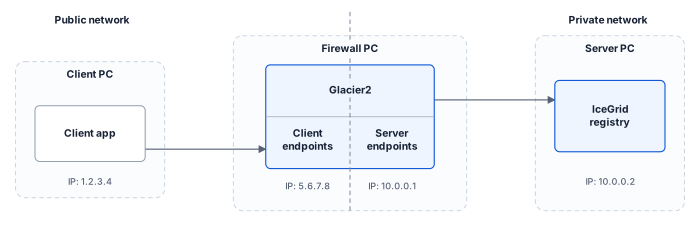
*Using IceGrid via a Glacier2 router.*
In this situation, it is the router that must be configured with a locator proxy.
Assuming the registry's client endpoint in the illustration uses port `8000`, the router requires the following setting for the [Ice.Default.Locator](https://docs.zeroc.com/ice/3.8/property-reference/ice-default-properties.md#ice.default.locator) property:
```config
Ice.Default.Locator=IceGrid/Locator:tcp -h 10.0.0.2 -p 8000
```
Fortunately, the node supplies this property when it starts the router, so there is no need to configure it explicitly. Note that all of the router's clients use the same locator.
## Remote IceGrid Administration via Glacier2
If you intend to administer IceGrid remotely via a Glacier2 router, you must define one of the following properties (or both), depending on whether you use user name and password authentication or a secure connection:
```config
Glacier2.SessionManager=IceGrid/AdminSessionManager
Glacier2.SSLSessionManager=IceGrid/AdminSSLSessionManager
```
These session managers are accessible via the registry's administrative session manager endpoints, so the Glacier2 router must be authorized to establish a connection to these endpoints. Note that you must secure these endpoints, otherwise arbitrary clients can manipulate the session managers. An administrative session is allowed to access any object by default. To restrict access to the `IceGrid::AdminSession` object and the `IceGrid::Admin` object that is returned by the session's `getAdmin` operation, you must set the property [IceGrid.Registry.AdminSessionFilters](https://docs.zeroc.com/ice/3.8/property-reference/icegrid-properties.md#icegrid.registry.adminsessionfilters) to `1`.
## Resource Allocation Using Glacier2 and IceGrid
To allocate servers and objects, a program can establish a client session via Glacier2. Depending on the authentication method, one or both of the following properties must be set in the Glacier2 configuration:
```config
Glacier2.SessionManager=IceGrid/SessionManager
Glacier2.SSLSessionManager=IceGrid/SSLSessionManager
```
These session managers are accessible via the registry's session manager endpoints, so the Glacier2 router must be authorized to establish a connection to these endpoints.
A client session is allowed to access any object by default. To restrict access to the `IceGrid::Session` and `IceGrid::Query` objects, you must set the property [IceGrid.Registry.SessionFilters](https://docs.zeroc.com/ice/3.8/property-reference/icegrid-properties.md#icegrid.registry.sessionfilters) to `1`. However, you can use the allocation mechanism to access additional objects and adapters. IceGrid adds an identity filter when a client allocates an object and removes that filter again when the object is released. When a client allocates a server, IceGrid adds an adapter identity filter for the server's indirect adapters and removes that filter again when the server is released.
## Session Considerations for Glacier2 and IceGrid
Providing access to [administrative sessions](https://docs.zeroc.com/ice/3.8/services/icegrid/icegrid-administrative-sessions.md) and [client sessions](https://docs.zeroc.com/ice/3.8/services/icegrid/resource-allocation-using-icegrid-sessions.md) both require that you define at least one of the properties [Glacier2.SessionManager](https://docs.zeroc.com/ice/3.8/property-reference/glacier2-properties.md#glacier2.sessionmanager) and [Glacier2.SSLSessionManager](https://docs.zeroc.com/ice/3.8/property-reference/glacier2-properties.md#glacier2.sslsessionmanager), which presents a potential problem if you intend to access both types of sessions via the same Glacier2 router.
The simplest solution is to dedicate a router instance to each type of session. However, if you need to access both types of sessions from a single router, you can accomplish it only if you use a different authentication mechanism for each type of session. For example, you can configure the router as follows:
```config
Glacier2.SessionManager=IceGrid/SessionManager
Glacier2.SSLSessionManager=IceGrid/AdminSSLSessionManager
```
This configuration uses user name and password authentication for client sessions, and SSL authentication for administrative sessions. If this restriction is too limiting, you must use two router instances.
## Deploying Glacier2 with IceGrid
The Ice distribution includes [default server templates](https://docs.zeroc.com/ice/3.8/services/icegrid/icegrid-templates.md) for Ice services such as IceStorm and Glacier2 that simplify the task of deploying these servers in an IceGrid domain.
The file `config/templates.xml` defines the Glacier2 template as follows:
```xml
A Glacier2 router with activation mode "always".
```
Notice that the server's pathname is `glacier2router`, meaning the program must be present in the node's executable search path.
The template defines only a few properties; if you want to set additional properties, you can define them in the server instance property set.
Of interest is the `instance-name` parameter, which allows you to configure the [Glacier2.InstanceName](https://docs.zeroc.com/ice/3.8/property-reference/glacier2-properties.md#glacier2.instancename) property. The parameter's default value includes the name of the application in which the template is used. This parameter also affects the [identities](https://docs.zeroc.com/ice/3.8/services/glacier2/getting-started-with-glacier2.md) of the objects implemented by the router.
Consider the following sample application:
```xml
...
```
Instantiating the `Glacier2` template creates a server identified as `Glacier2Demo.Glacier2` (as determined by the default value for the `instance-name` parameter). The router's objects use this value as the category in their identities, such as `Glacier2Demo.Glacier2/router`. The router proxy used by clients must contain a matching identity.
> **Note**
>
> We recommend you keep the template's default instance name (`${application}.Glacier2`) unless the application deploys several Glacier2 routers: the template uses the instance name as the server ID, so each router needs its own.
In order to refer to the `Glacier2` template in your application, you must have already configured the registry to use the `config/templates.xml` file as your [default templates](https://docs.zeroc.com/ice/3.8/services/icegrid/icegrid-templates.md), or copied the template into the XML file describing your application.
## See Also
- [Glacier2](https://docs.zeroc.com/ice/3.8/services/glacier2.md)
- [IceGrid Templates](https://docs.zeroc.com/ice/3.8/services/icegrid/icegrid-templates.md)
- [Getting Started with Glacier2](https://docs.zeroc.com/ice/3.8/services/glacier2/getting-started-with-glacier2.md)
- [Glacier2.\*](https://docs.zeroc.com/ice/3.8/property-reference/glacier2-properties.md)
- [IceGrid.\*](https://docs.zeroc.com/ice/3.8/property-reference/icegrid-properties.md)