Log File Dialog
3 min read
3 min read
3 min read
3 min read
3 min read
3 min read
3 min read
3 min read
3 min read
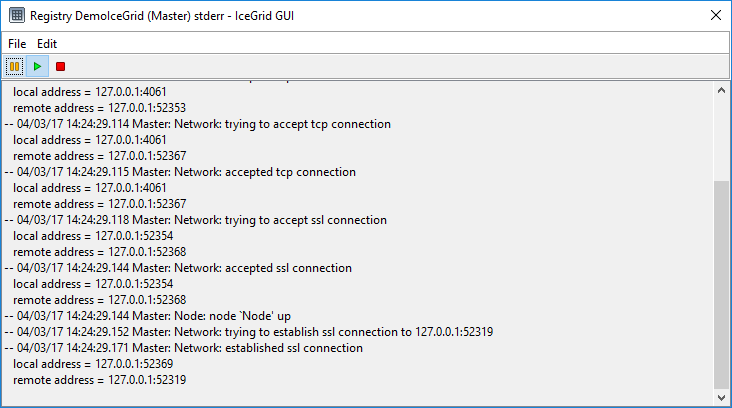
The Log File dialog shows a log file (text file) retrieved through IceGrid. Often, a process will be writing to this log file and the dialog will periodically check for new lines to display.
States
A log file dialog is always in one of the following states:
Running The dialog is periodically checking for new lines.
Paused The dialog is "connected" to a remote log file but does not currently retrieve new lines.
Stopped The dialog is not retrieving new lines from the remote log file.
Preferences
Use the Edit > Preferences... menu to open the Preferences dialog. These preferences apply to the current dialog and to any Log File dialog opened later on.
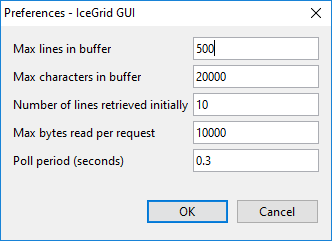
This dialog allows you to view and update the following settings:
- Max lines in buffer The maximum number of lines displayed in the log dialog.
- Max characters in buffer The maximum number of characters displayed in the log dialog.
- Number of lines retrieved initially When a new dialog is opened, or when restarting a stopped dialog, the dialog retrieves and displays up to this number of lines. The value
-1retrieves the log file from its beginning. - Max bytes read per request The maximum number of bytes retrieved by each request. Pick a value that is low enough to make the dialog appear responsive and big enough to avoid many round-trips when lots of data are logged. IceGrid GUI accepts values from 100 up to its
Ice.MessageSizeMaxsetting, converted to bytes, minus 512. - Poll period (seconds) When in the running state, the dialog attempts to retrieve new lines from the log file (through IceGrid) every Poll period seconds. IceGrid GUI accepts values from 0.2 to 5 seconds.
Saving and Copying
Use File > Save As... to save the text the dialog holds to a local file.
Use Edit > Copy to copy the selected text to the clipboard.